
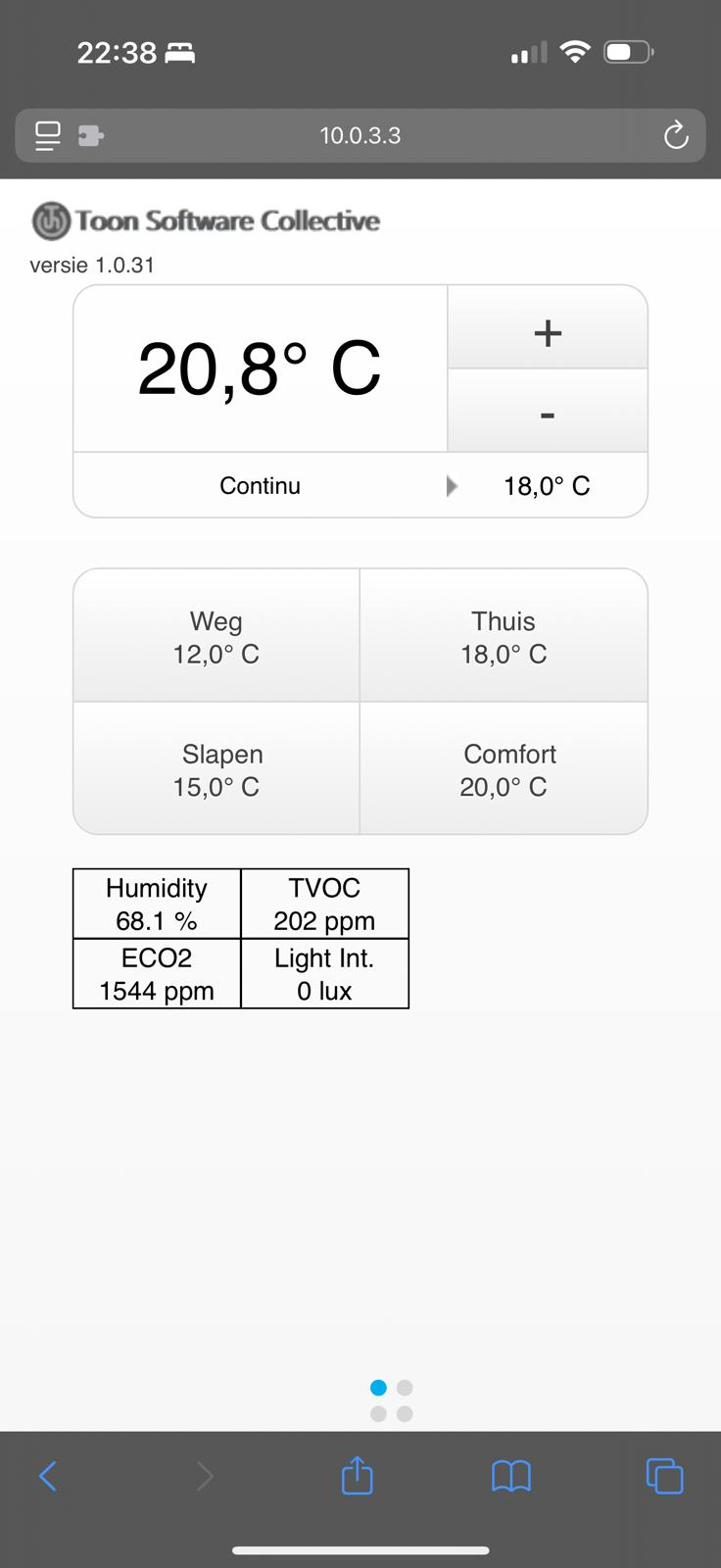
A rooted Toon has a built-in web interface that allows you to control it locally. If you want to do this from outside your home network — whilst travelling or at the office — there are two options: port forwarding (quick, but slightly riskier) or VPN (the secure solution).
This article explains both options and takes you through the configuration step by step.
First of all: do you have a static IP address?
Many internet connections are assigned a dynamic IP address — this address can change every few days. For remote access, you need a stable address, or you can solve this by using a DynDNS service (such as DuckDNS or No-IP) that automatically tracks your public IP address.
Exception: Caiway or Delta customers are behind Carrier Grade NAT. Port forwarding will not work in this case, not even with DynDNS. Ask your provider for a static IP address, or go straight to the VPN option below.
Option 1 — VPN (recommended)
If your router supports a VPN server (Synology, pfSense, MikroTik, OpenWrt), this is the best approach. You do not open a port to the internet — you first connect your phone or laptop to your home network via VPN, and then simply access the Toon using its internal IP address.
Mobile phone → VPN tunnel → home network → http://192.168.1.10/mobileAdvantages:
- No open port for the Toon
- Encrypted traffic
- Access to your entire home network
On a MikroTik, you can set up WireGuard or L2TP/IPsec. On a Synology, the VPN Server app is a quick option.
Option 2 — Port forwarding
If you don’t have a VPN, you can set up port forwarding on your router. This allows you to forward incoming traffic on a specific port to the Toon.
Step 1 — Find your Toon’s internal IP address
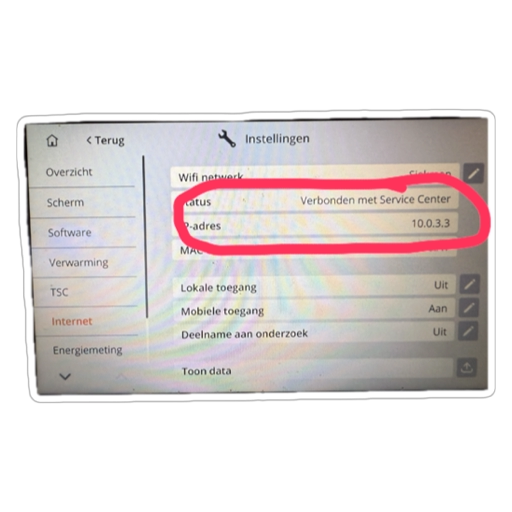
On the Toon itself: Settings → Internet → IP address
Make a note of this address, for example 192.168.1.10. It is best to set the address to static (assign it in your router based on the MAC address) so that it does not change after a restart.
Step 2 — Set up port forwarding on your router
Log in to your router (usually 192.168.1.1, 192.168.2.254 or 10.0.0.1 — the login details are on a sticker). Look for Port Forwarding, NAT or Firewall → Services.
Use a port between 30,000 and 45,000 instead of the standard port 80. This will significantly reduce the amount of automated scanning traffic.
Example:
| External port | Protocol | Internal IP | Internal port |
|---|---|---|---|
| 30030 | TCP | 192.168.1.10 | 80 |
Useful links if you’re having trouble:
- Port forwarding with Ziggo
- Port forwarding with KPN
- For other routers: search for
portforward [router model]
Step 3 — Setting up Mobile Login on the Toon
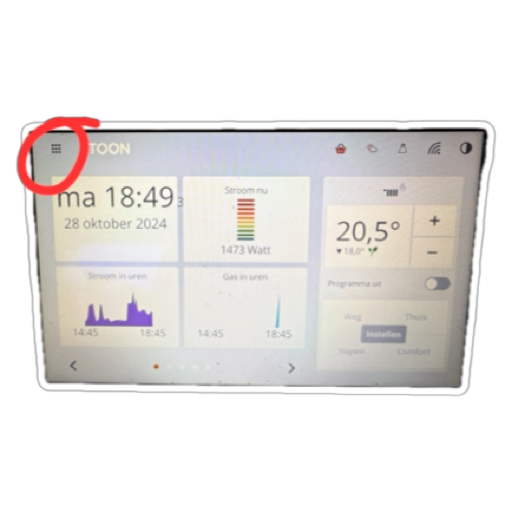
Open the Toon’s home screen. The TSC button is in the top left-hand corner.
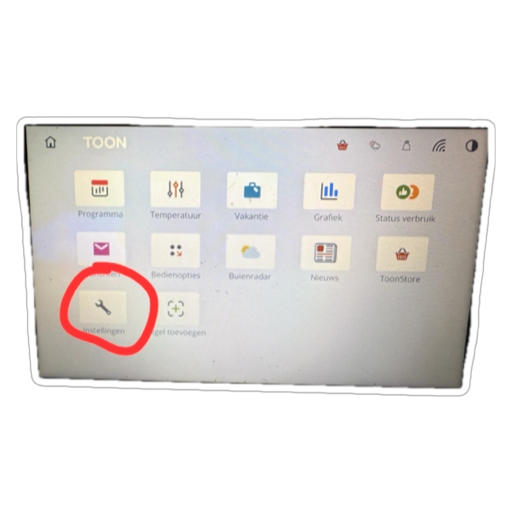
Tap the settings tile in the app menu.
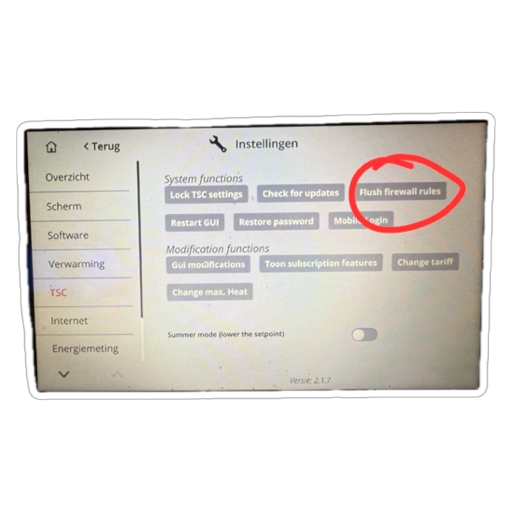
Go to the TSC settings menu.
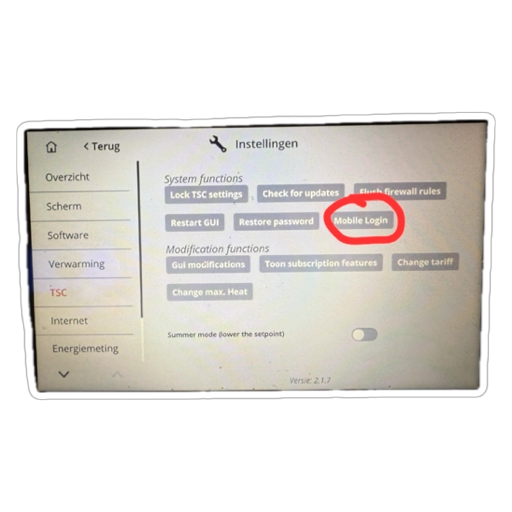
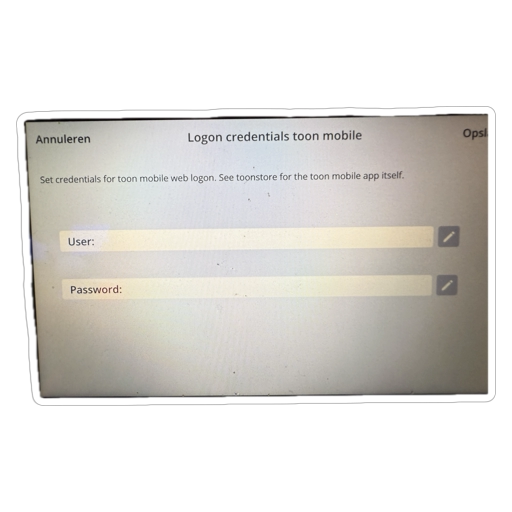
Scroll down to the Mobile Login section.
Enter your username and password.
Then click on Flush Firewall to apply the change.
Step 4 — Testing
First, locally (within your network):
http://192.168.1.10/mobileLog in using the details from step 3. Does this work? If so, switch off Wi-Fi on your phone and test using the public address:
http://<YOUR-PUBLIC-IP>:30030/mobileYou can find your public IP address at siekman.io/ip or by running curl siekman.io/ip.
Safety advice
- Use a strong password for Mobile Login — this is available directly on the internet
- Choose a non-standard port (not 80, 8080 or 8888)
- Consider whitelisting your IP address if you have a (semi-)static IP
- Check regularly to see if the Toon software has received any updates
- The very best solution remains a VPN
Summary
| Port forwarding | VPN | |
|---|---|---|
| Difficulty | Low | Medium |
| Risk | Higher | Low |
| Requirements | Router with NAT | Router with VPN server |
| Carrier NAT | Does not work | Does not work (same problem) |
Can I control a rooted Toon remotely without a static IP address?
Yes, via a DynDNS service that automatically tracks your dynamic IP address. Please note: Caiway and Delta (Carrier NAT) do not support port forwarding.
Is port forwarding safe for a Toon?
It carries risks — you’re opening a direct gateway to the internet. A VPN is the safest option. Alternatively, use a non-standard port number (30000–45000) and set a strong password via Mobile Login.
What is my Toon’s internal IP address?
You can find this via the View menu → Internet → IP address. It’s usually something like 192.168.1.x.
Lees het origineel in het Nederlands
← Lees in het Nederlands